Documents with Signature
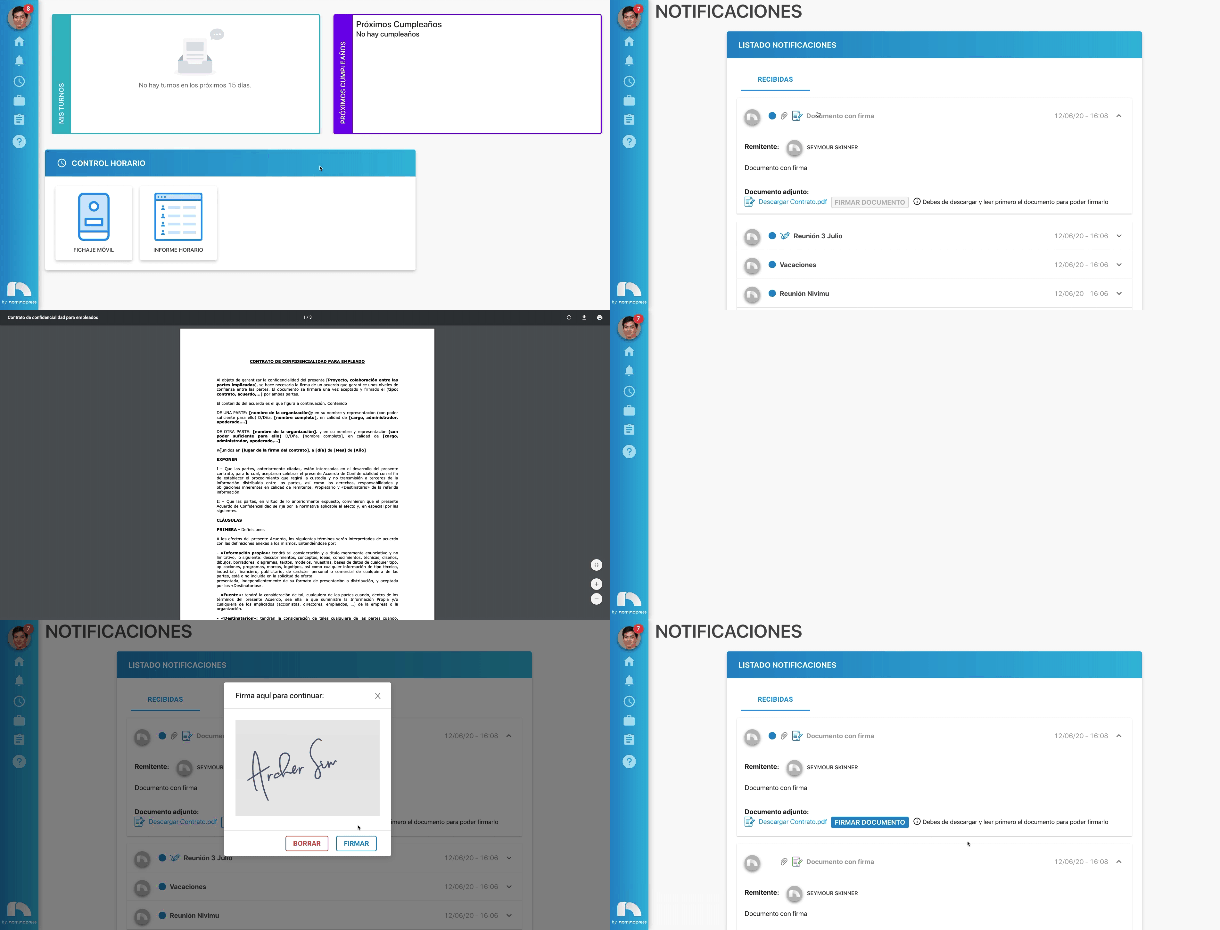
Besides signature in notifications for reading, documents like contracts can also be signed from the notifications section. You'll receive the notification with the attached file, sign it, and the signed document is sent back to the administrator.
To sign a document:
- Open the app menu and click Notifications.
- Upon access, all notifications sent to you appear. Those with the sign document icon on the left contain an attached document requiring a signature.
- Click the notification with the document to see the full message. If the notification requires signature for reading, first sign it to view the file.
- To sign the document, first download and view it. Click the document name appearing in the Attached document section and it automatically downloads to your device.
- Then, the Sign document button enables. Click the button and sign it.
- If you made a mistake signing, click the Delete button and the signature clears.
- Finally, click the Sign button. The signed file is sent to the administrator.